# EZR24 - 4G CAT12 Router

EZR24 series 4G LTE router with a Nano SIM card slot and external antenna sockets.

The **EZR24-012** router has a CAT12 mobile modem and a Nano SIM card slot. Insert a SIM card to access fast-speed mobile networks. It provides Gigabit Ethernet and 1200Mbps WiFi hotspots for massive users, home office appliances, and industrial machines.

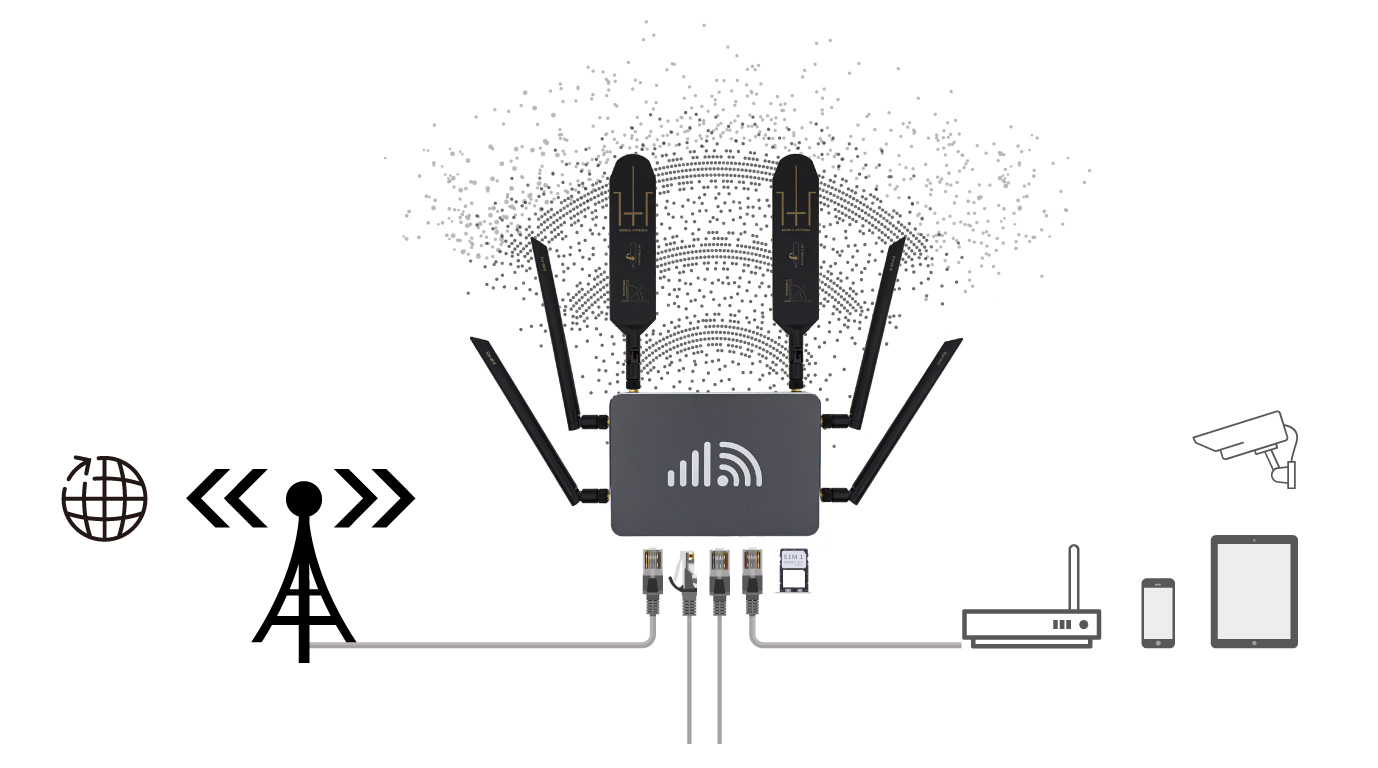
<figure><img src="https://2031239798-files.gitbook.io/~/files/v0/b/gitbook-x-prod.appspot.com/o/spaces%2FXrJBTozkgaqqeDtauCDH%2Fuploads%2FpscpMljiXOSCT39yi6p8%2FEZR24-Cat12-4G-Router-Networks.jpg?alt=media&amp;token=68f0f4e2-88cd-4493-9451-a4e8934daf49" alt="CAT12 4G Router Network Connections"><figcaption><p>EZR24 CAT12 4G Router Network Connections</p></figcaption></figure>

CAT12 mobile modem has a rated max 600Mbps download speed and 150Mbps upload speed.

It creates standalone dual WiFi hotspots on 2.4GHz and 5.8GHz. Total 1200Mbps bandwidth.

High-gain aerials and optimized RF antenna array bring the best signal transmission.

Check more products with CAT12 mobile modem at\
<https://www.outdoorrouter.com/product-tag/cat-12-router/>


# 1 Hardware

EZR24 router is an industrial-grade 4G LTE gateway designed for use in th environment and rugged deployments.

{% content-ref url="/pages/-LxLF9lU95FSVhsTArWZ" %}
[1.1 Package Contents](/manual/1-hardware/1.1-package-contents)
{% endcontent-ref %}

{% content-ref url="/pages/-LxLF4LM\_cJLVmzd5rv4" %}
[1.2 Physical Interfaces](/manual/1-hardware/1.2-physical-interfaces)
{% endcontent-ref %}

## Hardware Specifications

**CAT12 MOBILE LTE MODEM**

<table data-header-hidden><thead><tr><th width="213.33333333333331"></th><th width="295"></th><th></th></tr></thead><tbody><tr><td><strong>Specification</strong></td><td><strong>4G FDD-LTE</strong></td><td><strong>3G</strong> (WCDMA/HSDPA/etc)</td></tr><tr><td>Bands:</td><td><p><strong>4G FDD-LTE</strong><br>B1/2/3/4/5/7/8/9/12/13/14</p><p>17/18/19/20/21/25/26/28<br>29/30/32/66<br><strong>4G TDD-LTE</strong><br>Band 38/39/40/41</p></td><td>Band 1/2/3/4/5/8/9/19</td></tr><tr><td>Download Speed:</td><td><strong>4G FDD-LTE</strong>: Max 600Mbps<br><strong>4G TDD-LTE</strong>: Max 430Mbps</td><td>DC-HSDPA: Max 42Mbps<br>WCDMA: Max 384Kbps</td></tr><tr><td>Upload Speed:</td><td><strong>4G FDD-LTE</strong>: Max 150Mbps<br><strong>4G TDD-LTE</strong>: Max 30Mbps</td><td>HSUPA: Max 5.76Mbps<br>WCDMA: Max 384Kbps</td></tr><tr><td>Carrier Aggregation:</td><td>Download: 3x CA or 2x CA<br>Upload: 2x CA</td><td></td></tr><tr><td>Signal Modulation:</td><td>256QAM</td><td>64QAM</td></tr><tr><td>Output Power:</td><td>Class 3 (23dBm±2dB)</td><td>WCDMA: 24dBm+1/-3dB</td></tr><tr><td>3GPP Release:</td><td>E-UTRA Release 12</td><td></td></tr><tr><td>Bandwidth:</td><td>1.4/3/5/10/15/20MHz</td><td></td></tr></tbody></table>

**EZEN4X - MOTHERBOARD**

<table><thead><tr><th width="220"></th><th></th></tr></thead><tbody><tr><td>CPU Chipset:</td><td>MTK7621 MIPS1004Kec</td></tr><tr><td>Clock Speed:</td><td>880MHz</td></tr><tr><td>System Memory:</td><td>DDR3 256Mbyte</td></tr><tr><td>Flash Memory:</td><td>SPI FLASH 32MB</td></tr><tr><td>Modem Socket:</td><td>1x M2.0 (Active) and 1x Mini PCI Express v2.0</td></tr><tr><td>SIM Card Slot:</td><td>Nano-SIM Cards (12.3x8.8mm)</td></tr><tr><td>Indicator:</td><td>Power / System / Wi-Fi / Mobile</td></tr><tr><td>Temperature:</td><td>Working: -10 to +50°C<br>Storage: -40 to +85°C</td></tr><tr><td>Humidity:</td><td>0%~100% RH</td></tr><tr><td>Physical Interface:</td><td>1x WAN &#x26; 4x LAN ports<br>6x Antenna sockets (SMA female)<br>2x Nano-SIM card slot<br>1x Reset button</td></tr><tr><td>Measurement:</td><td>Aluminum alloy enclosure: L188xW128xH25mm<br>With aerial: L268xW168xH191mm</td></tr></tbody></table>

#### WIFI HOTSPOTS

<table data-header-hidden><thead><tr><th width="217.33333333333331"></th><th></th><th></th></tr></thead><tbody><tr><td>Frequency:</td><td><strong>2.4GHz</strong>: 2412~2472 MHz</td><td><strong>5.8GHz</strong>: 5180~5825MHz</td></tr><tr><td>Wi-Fi Channel:</td><td>1~13</td><td>149, 153, 157, 161, 165</td></tr><tr><td>Speed Rate:</td><td>300Mbps</td><td>867Mbps</td></tr><tr><td>Output Power:</td><td>27dBm</td><td>26dBm</td></tr><tr><td>Wi-Fi Standard:</td><td>IEEE 802.11 a/b/p/g/n/ac<br>IEEE 802.3 and IEEE 802.3u</td><td></td></tr><tr><td>MIMO Wi-Fi:</td><td>2T2R Wave 2.0 MU-MIMO</td><td></td></tr><tr><td>Transmission Rate:</td><td>1200Mbps</td><td></td></tr><tr><td>Mesh Wi-Fi:</td><td>EasyMesh standard</td><td></td></tr></tbody></table>

#### RF AERIAL ANTENNAS

<table data-header-hidden><thead><tr><th width="218.26720341281833"></th><th></th></tr></thead><tbody><tr><td>2 x 4G Antenna:</td><td>Frequency: 700~960 / 1710~2170 / 2300~2700MHz<br>Peak Gain: 3~5dBi / V.S.W.R.: ≤ 3.0<br>Size: 209 x 42 mm / Material: ABS</td></tr><tr><td>4 x Wi-Fi Antenna:</td><td><p>2x 2.4GHz Wi-Fi Antenna: 2400~2500MHz<br>Gain: 4~5dBi / V.S.W.R.: ≤ 1.92</p><p>2x 5.8GHz Wi-Fi Antenna: 5150~5850MHz<br>Gain: 4~5dBi / V.S.W.R.: ≤ 1.92</p><p>Size: Ø13 x 201 mm / Material: TPEE                                     </p></td></tr><tr><td>Connector:</td><td>SMA Male (Not RP)</td></tr><tr><td>Polarization:</td><td>Vertical</td></tr><tr><td>Impedance:</td><td>50 Ω</td></tr><tr><td>Max Input Power:</td><td>10 Watt</td></tr><tr><td>Temperature:</td><td>Working: -0° to 50° Celsius</td></tr></tbody></table>

#### DC POWER ADAPTER

<table data-header-hidden><thead><tr><th width="222"></th><th></th></tr></thead><tbody><tr><td>Input:</td><td>AC 100~240Volt 50/60Hz 0.5Amps</td></tr><tr><td>Output:</td><td>DC 12Volt 2.0Amps</td></tr><tr><td>Measurement:</td><td>75.7*47.2*31.3mm / 140g<br><em>Depending on the AC plug</em></td></tr><tr><td>AC Plug:</td><td>EU/GB/US/AU standard available<br><em>Ship depends on the destination</em></td></tr><tr><td>DC Jack:</td><td>Outer Ø5.5mm / Inner Ø2.1mm / Length 10mm</td></tr><tr><td>DC Wire:</td><td>Length 1200mm</td></tr><tr><td>Protection:</td><td>Short circuit, overload, and over-voltage</td></tr><tr><td>Certification:</td><td>CE / UL / FCC / DOE / ERP / GS / BS / SAA</td></tr></tbody></table>

**4G ROUTER FIRMWARE**

<table><thead><tr><th width="226"></th><th></th></tr></thead><tbody><tr><td>Router Firmware:</td><td>OpenEzen Series - EV40xx</td></tr><tr><td>Log in:</td><td>IP address: 192.168.20.1<br>Password: root</td></tr><tr><td>Built-in Protocols:</td><td><strong>Mobile:</strong> Mobile-Data (QMI) and PPP<br><strong>WAN:</strong> PPPoE / DHCP / Static<br><strong>LAN:</strong> Static with DHCP server (IPv4 &#x26; IPv6)</td></tr><tr><td>VPN Tunnel:</td><td>PPTP, L2TP, IPSec, OpenVPN, and WireGuard</td></tr><tr><td>Cloud Management:</td><td>Traversal Cloud and Ezen-Cloud (Optional)</td></tr><tr><td>Security:</td><td>Anti DDoS, SPI firewall, IP/Mac/Domain filter, IP &#x26; Mac bind</td></tr><tr><td>Port Forward:</td><td>Virtual server, port triggering, UPnP, DMZ</td></tr><tr><td>Computer:</td><td>Windows / Mac / Linux / etc</td></tr><tr><td>Bootloader:</td><td>uBoot (192.168.1.1)</td></tr></tbody></table>


# 1.1 Package Contents

After receiving the package, please check if all of the below components are included in the box.

After receiving the package, please check if all components below are included.&#x20;

1 x EZR24-012 CAT12 4G router\
2 x Mobile paddle antenna\
4 x WiFi whip antenna\
1 x 1-meter LAN cable\
1 x Power adapter

*Note: The AC Plug depends on the destination country.*

![EZR24-012 Package Contents](https://2031239798-files.gitbook.io/~/files/v0/b/gitbook-x-prod.appspot.com/o/spaces%2FXrJBTozkgaqqeDtauCDH%2Fuploads%2FDgrsBhU6qIpJh99jo3Dd%2FEZR24-Cat12-4G-Router_Package-Contents.jpg?alt=media\&token=31f5327d-6c10-4772-b6ca-7172df911aec)

{% hint style="info" %}
Please keep the original package for a few weeks. You can also use the rugged mailer box to store the other devices.
{% endhint %}


# 1.2 Physical Interfaces

Get known of the physical interfaces on the EZR24 router.

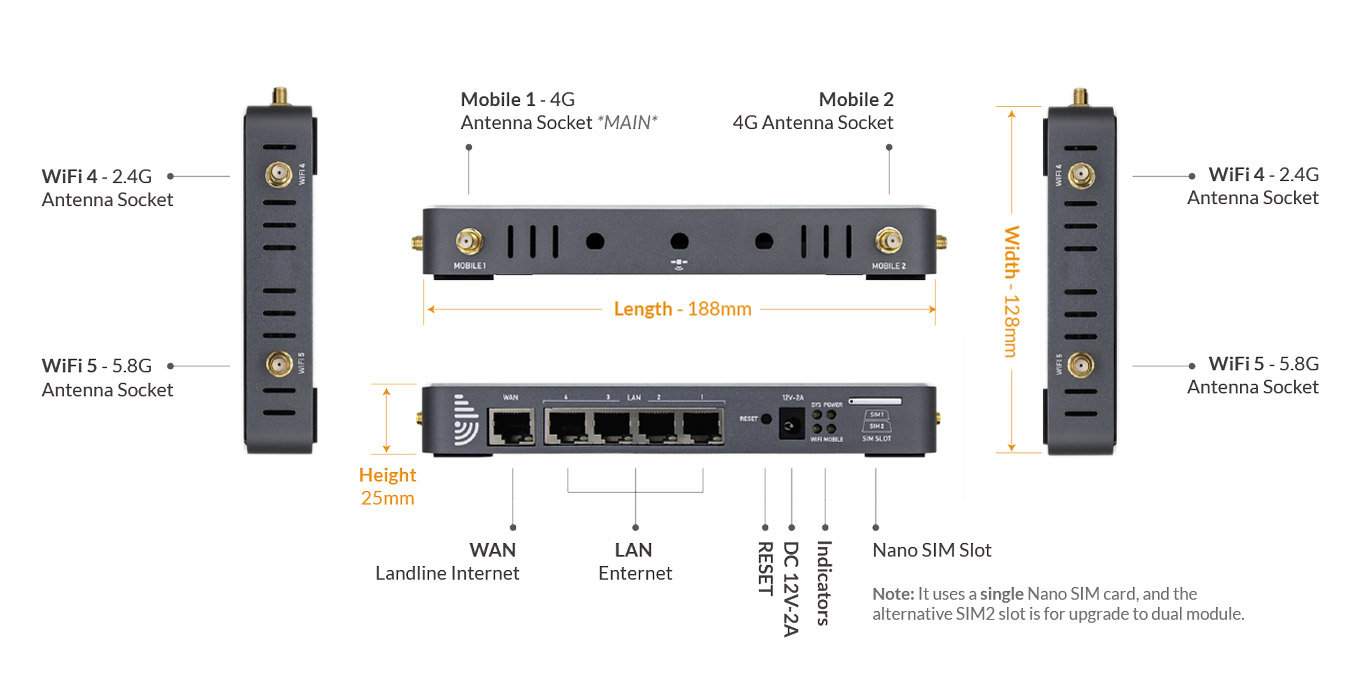
EZR24 router has 6x antenna sockets and 4xLAN & 1xWAN ports.&#x20;

The antenna sockets are SMA-female connectors. 4G antenna sockets are marked "Mobile 1\~2" on the upsides. Wi-Fi sockets are marked "WiFi4" and "WiFi5" on the left & right sides.

<figure><img src="https://2031239798-files.gitbook.io/~/files/v0/b/gitbook-x-prod.appspot.com/o/spaces%2FXrJBTozkgaqqeDtauCDH%2Fuploads%2FaGU1xMX305Bo5D2aKgXu%2FEZR24-LTE-Router-Mobile-Modem-Interfaces-Sockets-Overview-v3.jpg?alt=media&amp;token=9b8fa188-b7d5-4519-ad17-9eaca51ce4ed" alt="CAT12 4G Router Physical Interfaces"><figcaption><p>EZR24-012 4G Router Physical Interfaces</p></figcaption></figure>


# 2 SIM Card & Power

Insert a SIM card and connect to the power adapter to boot up the EZR24 router.


# 2.1 Signal Quality

Good 4G LTE mobile signal quality is a fundamental factor in getting a stable and fast internet connection over the mobile network.

### Mobile Networks Mode

There are various mobile networks, 2G, 3G, 4G, and even the newest 5G NR networks. Please take note of signal bars and the symbol in the status bar of the mobile phone and compare them with the below chart.

<table><thead><tr><th width="146.97590361445782">Symbol</th><th width="314">Mobile Networks</th><th>Common Speed</th></tr></thead><tbody><tr><td>4G (LTE)</td><td>Fourth generation or Long term evolution<br>also known as LTE or WiMax</td><td>100Mbits/s+</td></tr><tr><td>3G</td><td>Third Generation<br>also known as UMTS / WCDMA / CDMA2000</td><td>2Mbits/s</td></tr><tr><td>2G</td><td>GPRS <br>(General Packet Radio Service)</td><td>50Kbits/s</td></tr><tr><td>E</td><td>EDGE <br>(Enhanced Data GSM Evolution)</td><td>100Kbits/s</td></tr><tr><td>H/H+</td><td>HSPA<br>(High-Speed Packet Access)</td><td>10-100Mbits/s</td></tr><tr><td>No Symbol</td><td>If signal bars get more than 1 bar<br>you can use voice call</td><td>No</td></tr></tbody></table>

### &#x20;Signal Strength

We should input a "Fair" signal level for the 4G router (refer to the below chart), which equals approximately 2-bar 4G LTE signals on a mobile phone.

You can run a basic test on a mobile phone. Insert the SIM card that is going to use on the router on a mobile phone. Disable Wi-Fi on the mobile phone and go around to check its network type and signal bars. Then choose a location with a strong and stable 4G-LTE signal reception.&#x20;

Please refer to the [signal test tutorial](https://www.outdoorrouter.com/field-test-4g-mobile-signal-strength/).

![4G Signal Quality Chart](https://2031239798-files.gitbook.io/~/files/v0/b/gitbook-x-prod.appspot.com/o/spaces%2FXrJBTozkgaqqeDtauCDH%2Fuploads%2FPLvhQdKh9jThIoahMYnr%2Fimage.png?alt=media\&token=2c07c988-314a-43d2-877e-06b68e131dcb)

{% hint style="info" %}
The numerical value of 2G and 3G networks is RSSI standard.&#x20;

The LTE network is RSRP standard. RSRP means Reference Signal Receive Power.

The signal values are negative numbers. A number that is closer to zero means a stronger signal. For example, -90dB is stronger than -100dB.
{% endhint %}


# 2.2 Insert A SIM Card

The EZR24 router requires to insert SIM card to connect to the mobile internet networks.

Please use Nano-SIM cards (12.3x8.8mm) on the EZR24 router.&#x20;

Please use an activated SIM card in the router. If you are going to use a new SIM card, please follow the instruction from the mobile carrier to activate the SIM card.

![EZR24 router uses Nano SIM cards](https://2031239798-files.gitbook.io/~/files/v0/b/gitbook-legacy-files/o/assets%2F-LvFmeL2Pv0EF2-7nON9%2F-LxQ1c6Ik5UlOWOQ9j5L%2F-LxZoKJUeZsSpLaRrIH9%2Fimage.png?alt=media\&token=c52857ea-ea77-4650-8459-2cb70c7a9143)

{% hint style="warning" %}
Please always turn off the power while inserting or removing the SIM card.
{% endhint %}

{% hint style="info" %}

### Clean the SIM Card

If the 4G router does not recognize the SIM card or gets an error message such as "SIM card is unavailable,"

Firstly, please verify if the SIM card was inserted correctly.

Secondly, please check if the SIM card is clean, especially the golden contacts.

Finally, if there is dust/dirt/oil on the SIM card, you can wipe it to clean the SIM card.
{% endhint %}

## Insert SIM Cards <a href="#insert-sim-cards" id="insert-sim-cards"></a>

1. Turn off the power before inserting SIM cards.
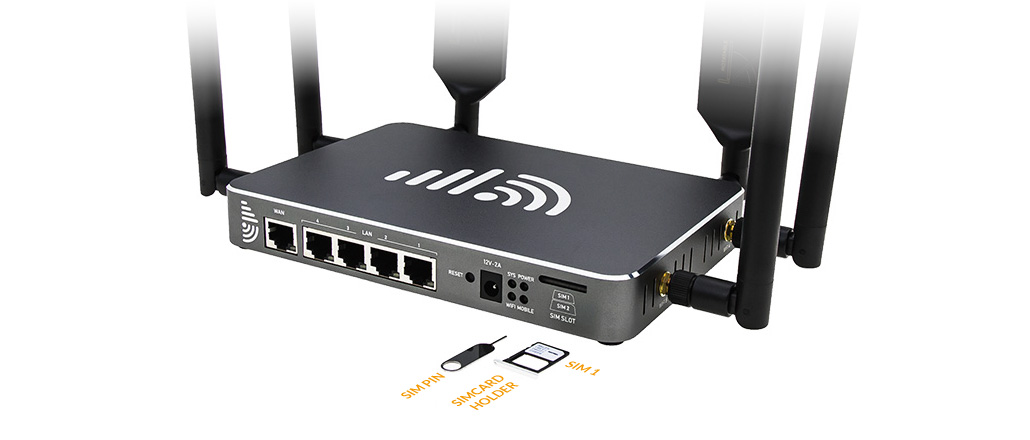
2. Use the included SIM pin to push the pinhole gently until the SIM card holder pops out.
3. Put the primary SIM card in the first slot. Ensure the notch is in the inside direction and the pins face down. There is only one correct way to settle the Nano SIM card into the cardholder.
4. Carefully reposition the SIM card holder in the slot and push it back gently.

<figure><img src="https://2031239798-files.gitbook.io/~/files/v0/b/gitbook-x-prod.appspot.com/o/spaces%2FXrJBTozkgaqqeDtauCDH%2Fuploads%2FyF3MoqqbanHbzFu98UQU%2FEZR24-Cat12-4G-Router-SIM-Card-Slot_v1.2.jpg?alt=media&amp;token=74eba0c8-a73c-4288-a001-a5cb03975757" alt="CAT12 4G Router with SIM Card Slot"><figcaption><p>EZR24-012 CAT12 4G Router with SIM Card Slot</p></figcaption></figure>


# 2.3 Power Supplies

The EZR24 router uses a 12Volt DC power adapter. Please ensure to use the correct voltage and current if using other power sources.

An AC to DC power adapter is included in the package.&#x20;

Connecting the DC power adapter to the 100\~240 Volt AC electrical outlet power, it output 12Volt 2Amps DC power to the 4G router.

{% hint style="info" %}
‌If you received more than one power plug, you could exchange the plug. Press the "Push" button and twist the power plug clockwise to remove it.&#x20;

Then install another plug on the power adapter and twist it in the anti-clockwise direction to tighten it.
{% endhint %}

![](https://2031239798-files.gitbook.io/~/files/v0/b/gitbook-legacy-files/o/assets%2F-LvFmeL2Pv0EF2-7nON9%2F-M51RafeYBQXwOdRQkHZ%2F-M51XDrGGaTYq-2uyz9w%2FEZR23-4G-Router_DC-Power-Adapter.jpg?alt=media\&token=0518aa88-58f2-45d1-a4a2-86c6b8978617)

### Alternative DC Power

The DC power socket on the EZR24 router can work with 12Volt and 2Amps DC power. The correct DC jack is Ø5.5 x 10mm, and the inner pin is Ø2.1mm.


# 2.4 Install Antennas

The EZR24 router uses MIMO antennas on both mobile and Wi-Fi connections.

When installing the antennas, set the router and antennas in a straight direction to avoid bending the pins in the connector.

Please check the below chart about which antenna goes to which socket.

Twist the SMA-male connector on the antennas in the clockwise direction to install the antennas on the router. Make sure the connection is tight.

<table><thead><tr><th width="250">Antenna Socket</th><th>Antenna Marks</th></tr></thead><tbody><tr><td>Mobile 1 *Main</td><td>Either 4G paddle antenna</td></tr><tr><td>Mobile 2</td><td>Either 4G paddle antenna</td></tr><tr><td>WiFi 4</td><td>Either WiFi4 whip antenna</td></tr><tr><td>WiFi 5</td><td>Either WiFi5 whip antenna</td></tr></tbody></table>

{% hint style="info" %}
The two flat panels of the 4G paddle antennas have a higher performance. Please adjust the paddle direction to the outside or signal source to receive a better signal.
{% endhint %}

![](https://2031239798-files.gitbook.io/~/files/v0/b/gitbook-x-prod.appspot.com/o/spaces%2FXrJBTozkgaqqeDtauCDH%2Fuploads%2FC1JkEOWhReiw2514rHuo%2FEZR24-4G-Router_Install-Antennas.jpg?alt=media\&token=a5565661-6ad0-45aa-aca4-52e55881ed44)

### Upgrade Antenna

When you have a weak signal reception, please consider upgrading the 4G mobile antenna with a higher-gain antenna. The outdoor directional antennas could point toward the cell tower and receive stronger signals.

To connect to the other mobile or WiFi antennas, make sure these antennas have the standard SMA-male connectors. You can use a MIMO antenna or a single-polarized antenna on the router. The single-polarized antenna should connect to the Mobile-Main socket on the left side.&#x20;

**MIMO 4G Panel Antenna** :link: \
<https://www.outdoorrouter.com/product/outdoor-4g-lte-mimo-panel-antenna/>


# 2.5 Indicators

Instructions to the status and descriptions on each indicator of the EZR24 router.

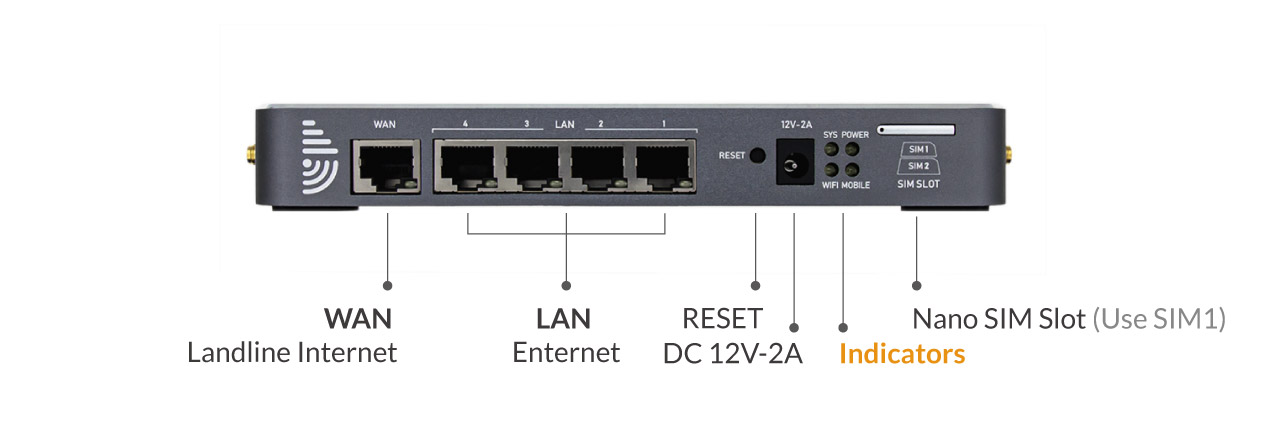
There are four indicators on the EZR24-012 router. From up to down, the left sides are system & Wi-Fi, and the right is Power and Mobile. Below are the indicator descriptions.

<figure><img src="https://2031239798-files.gitbook.io/~/files/v0/b/gitbook-x-prod.appspot.com/o/spaces%2FXrJBTozkgaqqeDtauCDH%2Fuploads%2FyEZD3JwDBlsG1ykSSqND%2FEZR24-LTE-Router-v2_Interface_v1.2.jpg?alt=media&amp;token=5db729e0-0575-410a-b43f-40815000f3f4" alt="CAT12 4G Router Working Indicators"><figcaption><p>EZR24-012 - CAT12 4G Router Working Indicators</p></figcaption></figure>

<table><thead><tr><th width="119.4">Indicator</th><th width="97">Status</th><th>Description</th></tr></thead><tbody><tr><td>System</td><td>Green</td><td>This light indicates that the router is receiving power. If it's lit solid green, then the router has booted successfully.</td></tr><tr><td></td><td>Flash</td><td>The router system is booting up. The system indicator flashes while resetting or flashing the firmware.</td></tr><tr><td></td><td>Off</td><td>No light at all indicates that the router is not receiving power. Check the PoE socket connect to the motherboard and check the PoE adapter. You might need to test an alternate power socket if the router doesn't power on.</td></tr><tr><td>WiFi</td><td>Green</td><td>This light indicates that the modem is sending a Wi-Fi signal. If the light is on the green, you can see and connect to the Wi-Fi network.</td></tr><tr><td></td><td>Flash</td><td>If you are connected to the Wi-Fi hotspot, it will flash green to indicate data going to and from the router. If the router is connected to another Wi-Fi hotspot (Wi-Fi relay), it will also flash because it has the data flow.</td></tr><tr><td></td><td>Off</td><td>If it's off, your router is no longer sending a Wi-Fi signal. You can log in to the router admin and turn on the Wi-Fi master hotspot.</td></tr><tr><td>Power</td><td>On</td><td>After connected to the DC power adapter, it will turns on.</td></tr><tr><td>Mobile</td><td>Green</td><td>It shows the mobile connection status. Stay on green color means connected to the mobile network.</td></tr></tbody></table>


# 3 Firmware

Config the 4G router firmware system.


# 3.1 Login Router

Connect a phone or computer to the EZR24 router via Wi-Fi or Ethernet. And login to the router at the default router IP address 192.168.20.1.

## Connect to Router

After connecting to the electrical outlet via the DC power adapter, the EZR24 router will boot up and turn on the Wi-Fi hotspots **`Cell-WiFi-xxxx-V4`** and **`Cell-WiFi-xxxx-V5`** in 2\~3 minutes.&#x20;

#### i. Wi-Fi Connection

The default Wi-Fi hotspot has **`no encryption`**. Connect to this Wi-Fi hotspot on a computer or mobile phone.

#### ii. LAN Connection

You can connect a computer one the LAN ports on the EZR24 router.&#x20;

#### iii. IP Settings

{% tabs %}
{% tab title="DHCP" %}
The DHCP server is enabled on the EZR24 router.&#x20;

DHCP is used to dynamically assign the IP address, gateway, domain name server, and other information to the connected devices. Below are the default DHCP settings.

Router Address (Gateway): `192.168.20.1`\
Subnet Mask: `255.255.255.0 (24)`\
DHCP IP Pool: `192.168.20.100~254`\
DHCP Lease Time: `12 Hours`

If the terminal is turned on DHCP client mode, it will automatically obtain the local IP address. If the terminal is using the static IP mode, please follow the below guidance to set up the IP address.
{% endtab %}

{% tab title="Static IP" %}
Configure TCP/IP on your connected devices, make sure the IP address is within `192.168.20.100~249`. The subnet mask should be `255.255.255.0`. The router address should be `192.168.20.1`.&#x20;

On iPhone: Goes to `Settings` > `Wi-Fi` > `Advanced` \
On Android phone: Goes to `Settings` > `WLAN` > `Advanced` \
On Mac: Goes to `System preferences` > `Network` > `Wi-Fi` > `Advanced` > `TCP/IP`

**On Windows:**&#x20;

Goes to `Start` > `Control panel` > `Network and internet` > `Change adapter setting` (on left window panel) > `Local area connection` > `Properties` (right click) > `TCP/IPv4` (Internet protocol version 4) > `Properties` > `General`.

Choose `Obtain an IP address automatically` and `Obtain DNS server address automatically` Click `OK` to exit settings.&#x20;

Click `OK` again in the `Local area connection properties` to apply the new configurations.
{% endtab %}
{% endtabs %}

## Login Router

After connecting your smartphone or computer to the router, open a web browser and type **`http://192.168.20.1`** in the URL address bar. Use default password 🔑`root` or `admin` to log in to the EZR23 router admin.

![Login EZR24 4G Router Firmware Admin Web UI](https://2031239798-files.gitbook.io/~/files/v0/b/gitbook-x-prod.appspot.com/o/spaces%2FXrJBTozkgaqqeDtauCDH%2Fuploads%2FC8fZQaElf8ZKjm3SX6ov%2FEZR24-4G-Router_Login-4G-Router-Firmware-Authorization-Request.png?alt=media\&token=125fb07d-9ab3-4ee2-a218-f2fcf54d3d21)

{% hint style="info" %}
If unable to access router admin with 192.168.20.1, please clear the cache on your browser or use the below complete URL path. 🔗<http://192.168.20.1/cgi-bin/luci>
{% endhint %}

{% hint style="warning" %}
The default URL prefix is **http\://** instead of https\://.
{% endhint %}


# 3.2 System Admin

Here are the basic system settings that should be changed on the EZR24 router.

After accessing the router admin panel, navigate to ***"System > System"*** from the top menu. We will go to the below System Properties page.

## System Properties

### Time Zone

Under the tab of General Settings, click the **"Sync with browser"** button to sync the time. \
The 4G router will automatically sync with the time server after being connected to the internet.

Choose the correct time zone, then click the **"Save & Apply"** button on the bottom right corner to save your new settings.

### Host Name

You can customize the **"Hostname."** It displays on the top left side corner.

![](https://2031239798-files.gitbook.io/~/files/v0/b/gitbook-x-prod.appspot.com/o/spaces%2FXrJBTozkgaqqeDtauCDH%2Fuploads%2FONW43BdGbIuRxNaFHFsa%2FEZR24-4G-Router-Network-Interfaces-Overview.png?alt=media\&token=912ef3c3-8e11-4b86-9963-30999ee51a6c)

## Administration

Go to ***"System > Administration,"*** input the new custom router password twice on the section of *"Router Password,"*  then click the **"Save & Apply"** button on the bottom right corner.

![](https://2031239798-files.gitbook.io/~/files/v0/b/gitbook-x-prod.appspot.com/o/spaces%2FXrJBTozkgaqqeDtauCDH%2Fuploads%2Ft7NynyJjsNQvcpWlwBFd%2FEZR24-4G-Router-Password.png?alt=media\&token=96863ca4-808c-46a2-901a-8ed90029e256)

{% hint style="danger" %}
Keep the new router's admin password in a safe place. If the password was forgotten, you must [reset the firmware](https://ezr24.outdoorrouter.xyz/manual/3-firmware/pages/-LxMOzEzeqRrq6PndCXA#3.8.2-factory-reset) system.
{% endhint %}


# 3.3 Network Interfaces

The network interfaces on the EZR24 router.

After logging in to the router, go to `Network` > `Interfaces` to view and manage the network interfaces.

The brief information of each interface is listed under the second column, including MAC address, Rx (Download), Tx (Upload), Uptime, and IP address.&#x20;

<img src="https://2031239798-files.gitbook.io/~/files/v0/b/gitbook-x-prod.appspot.com/o/spaces%2FXrJBTozkgaqqeDtauCDH%2Fuploads%2FZG0pRluZPHyaMg0t3pfx%2FEZR24-4G-Router-Network-Interfaces-Overview.png?alt=media&amp;token=0b7fee83-23c8-4356-bfcd-316621a98aa5" alt="" data-size="original">

{% hint style="danger" %}
Do not `Stop` the LAN interface or `Delete` any of the interfaces. \
It will make the router misfunction.
{% endhint %}

{% hint style="info" %}

* The color on each interface is not corresponding to its connection status.
* Rx/Tx indicates the real-time data stream instead of the internet speed.
  {% endhint %}

### Guest (br-guest)

This interface is bound to the Guest WiFi. It uses a separate subnet, ***192.168.100.1***. Terminals connecting to the Guest WiFi cannot access the hosts or servers under the main subnet of ***192.168.20.1***.&#x20;

The Guest WiFi hotspots are turned off on the default settings. You can enable them under "Network > Wireless."

### LAN (bar-lan)

This is the interface of the main local intranet network. It is assigned to the physical RJ45 port `eth0.1`. Refer to the below section to configure the local intranet networks.

{% content-ref url="/pages/-LxMQCr\_pj9qzxkYdNW0" %}
[Local Networks](/manual/3-firmware/3.3-network-interfaces/local-networks)
{% endcontent-ref %}

### Mobile (wwan0)

This is the mobile modem interface. The EZR24-012 router uses the SIM#1 slot.&#x20;

**Uptime:** The activated mobile connection period.\
**RX/TX:** The real-time data stream on mobile internet.\
**IPv4:** The mobile internet IP address. Mostly a private IP.

Click the "**Edit**" button to change mobile protocol, APN, SIM card, PIN code, etc. Refer to [3.3 Mobile Modem](/manual/3-firmware/3.4-mobile-modem) settings.

The 4G router automatically connects to the mobile network when started up. You can manually Stop or Connect the 4G modem by clicking the related buttons. After successfully connecting to the 4G network, Rx/Tx shows the real-time data stream and the IPv4 IP address.

{% content-ref url="/pages/-LxMP4OZJYLVZQVtGd9n" %}
[3.4 Mobile Modem](/manual/3-firmware/3.4-mobile-modem)
{% endcontent-ref %}

###

### WAN (eth0.2)

The `WAN` port is bound to the `eth0.2` RJ45 port which is marked "WAN" on the enclosure.

`DHCP client protocol` is enabled on the WAN interface, and it can automatically obtain the IP address after being connected to the LAN port on another internet router or modem.

### WWAN (2G & 5G)

These are the virtual interfaces for the Wi-Fi relay connections on 2.4GHz and 5.8GHz. You can use the WiFi relay to connect the EZR24 router to another existing WiFi hotspot wirelessly.

{% content-ref url="/pages/-LxMP4FbB43g8aqDh0zk" %}
[3.5 WiFi Hotspots](/manual/3-firmware/3.5-wifi-hotspots)
{% endcontent-ref %}


# Local Networks

Configure the LAN interface to set up local intranet networks.

{% hint style="danger" %}
Do not `stop` or `delete` the **LAN (bar-lan)** interface, which is the DHCP server of local networks and the cornerstone of Ethernet and Wi-Fi functions.
{% endhint %}

## **i. Configure IP Pool**

To modify the DHCP configuration, you need to log in to the router admin, go to `Network` > `Interfaces` on the top menu. Click `Edit` on the row of `LAN` (local area network).

#### **Configuration > General**

In the section of `Common Configuration` > `General Setup`, you can modify the router IP address, netmask, gateway address, broadcast address, and DNS servers.

<table data-header-hidden><thead><tr><th width="185.33333333333331">Field</th><th width="154">Default</th><th>Description</th></tr></thead><tbody><tr><td>Field</td><td>Default</td><td>Description</td></tr><tr><td>IPv4 address</td><td>192.168.20.1</td><td>IP address that the router uses on the LAN network</td></tr><tr><td>IPv4 netmask</td><td>255.255.255.0</td><td>Netmask is used to define how “large” the LAN network is</td></tr><tr><td>IPv4 broadcast</td><td>N/A</td><td>Broadcast is used by DHCP clients to find and send requests to their respective servers</td></tr></tbody></table>

#### **DHCP Server > General**&#x20;

Scroll down and find the section of `DHCP server` > `General Setup`, you can modify the `DHCP IP pool` and `DHCP lease period`.

The DHCP server can automatically configure the TCP/IP settings of connected devices and lease out an IP address from the available IP pool.&#x20;

To disable the DHCP server, you can select the checkbox of `Ignore interface`.

<table data-header-hidden><thead><tr><th width="101">Field</th><th width="97.4">Default</th><th>Description</th></tr></thead><tbody><tr><td>Field</td><td>Default</td><td>Description</td></tr><tr><td>Start</td><td>100</td><td><p>The start of the DHCP IP pool.</p><p>For example, if the router’s LAN IP is 192.168.20.1 and the netmask is 255.255.255.0, a valid IP address should be in the range of [192.168.20.0…192.168.30.254]</p><p>* <em>192.168.20.255 is a special unavailable address.</em></p></td></tr><tr><td>Limit</td><td>150</td><td><p>Define the IP addresses the DHCP server can lease out.</p><p>Continuing from the above example: if the start address is 192.168.20.100 and the server can lease out 150, available addresses will be from 192.168.20.100 to 192.168.20.249.</p></td></tr><tr><td>Lease time</td><td>12 hours</td><td><p>The duration of an IP lease. Leased-out addresses will expire after the specified period, and you have to request a new DHCP lease.</p><p>If the device stays connected, its lease will be renewed after half of the specified amount of time passes.</p><p>For example, if the lease time is 12 hours, then every 6 hours, the device will send a request to the DHCP server asking to renew its lease.</p><p>The lease time can be set in hours (h) or minutes (m). The minimum time that can be specified is 2min (2m).</p></td></tr></tbody></table>

#### **DHCP Server > Advanced**

Under the tab of `Advanced Settings`, you can set up more configurations on the DHCP server.

<table data-header-hidden><thead><tr><th width="122.4">Field </th><th width="106">Default</th><th>Description</th></tr></thead><tbody><tr><td>Field </td><td>Default</td><td>Description</td></tr><tr><td>Dynamic DHCP</td><td>Enable</td><td>Enables dynamic allocation of client addresses. If disable it, you have to input static IP address on the connected devices.</td></tr><tr><td>Force</td><td>Disable</td><td><p>The DHCP force function ensures that the router will always start its DHCP server, even if there is another DHCP server already running in the router’s network.</p><p>*** When connecting the router to another router via LAN cable, the outdoor router will turn to AP mode and obtain the IP address assigned from another router. You will no longer be able to access the router at 192.168.20.1.</p></td></tr><tr><td>IPv4 Netmask</td><td>NA</td><td>Overrides the LAN netmask, thus making the DHCP server think it’s serving a larger or smaller network than it actually is.</td></tr><tr><td>DHCP Options</td><td>NA</td><td>For example, with ‘26,1470’ or ‘option:mtu, 1470’ you can assign an MTU value per DHCP. You can add more options by clicking the plus symbol (Services sms gateway auto-reply plus symbol.PNG) located next to the field.</td></tr></tbody></table>

## ii. Physical LAN Interface

There are five physical RJ45 ports on the EZR24 router. LAN Ethernet is bound to the logical port `eth0.1` which includes physical **LAN 1\~4** ports.&#x20;

## **iii. DHCP Leases**

To check the active DHCP clients, you need to log in to the router admin, go to `Network` > `DHCP & DNS`, scroll down and find the section of `Active DHCP Leases`.

#### **Static Leases**

Static IP leases reserve specific IP addresses to particular devices by binding them to their MAC address. It’s useful when having a stationary device connected to the network that needs to reach frequently, such as NAS, printer, camera, etc.

![](https://www.outdoorrouter.com/wp-content/uploads/EZR3X_DHCP-DNS_Static-Leases-1400x402.png)

<table data-header-hidden><thead><tr><th width="166.95890410958907">Field Name</th><th width="136">Default Value</th><th>Description</th></tr></thead><tbody><tr><td>Field Name</td><td>Default Value</td><td>Description</td></tr><tr><td>Hostname</td><td>NA</td><td>A custom name that describe be linked device</td></tr><tr><td>MAC Address</td><td>NA</td><td>MAC address of the linked device</td></tr><tr><td>IPv4 Address</td><td>NA</td><td>The desirable IP address that reserved for the specified device</td></tr></tbody></table>


# 3.4 Mobile Modem

Monitor status and configure APN and Protocol on the Mobile interface.

## MOBILE STATUS <a href="#mobile-status" id="mobile-status"></a>

Access the router, go to `Network` > `Interfaces`. You can find the `Mobile` interface, which corresponds to the cellular modem. Once you boot up the EZR24 router, the mobile interface automatically connects to mobile networks.

After successfully setting up a mobile internet connection, you can find the below information on the status of both `Mobile`  interfaces.

* **Rx/Tx** indicates the real-time data stream but not the internet speed rate.
* **IPv4** Address is the IP address obtained from the mobile carrier.

&#x20;

You can manually "**Stop**" the Mobile interface to disable the mobile connection. If you need to "**Restart**" the mobile modem, suggest **Unplugging the DC power adapter** to force the cellular modem to run a fresh restart.&#x20;

![EZR24 Router - Mobile Modem Status](https://2031239798-files.gitbook.io/~/files/v0/b/gitbook-x-prod.appspot.com/o/spaces%2FXrJBTozkgaqqeDtauCDH%2Fuploads%2FQjUb8HJ95eHzfguTlJ53%2F4G-Router-Mobile-Modem-Interface-Status.png?alt=media\&token=3389775f-ad7b-4dd4-b7b4-d5ded2a36083)

## APN SETTINGS <a href="#apn-settings" id="apn-settings"></a>

**APN**, short for Access Point Name, is the gateway to access the mobile network. In general conditions, the EZR24 router can use the default APN parameters prebuilt in the cellular modem to set up a connection.

Some mobile carriers or data plans use different APN addresses. Please check the correct APN address with the SIM card provider. You can follow the below guide to set up APN parameters.&#x20;

1. Access the router, go to `Network` > `Interface`. Click the `Edit` button on the row of `Mobile`.<br>
2. In the tab `General Setup` \
   \
   `Protocol`: Keep the default `Mobile Data` unless you need to switch to [`4G-PPP`](/manual/3-firmware/3.4-mobile-modem/mobile-protocols)\
   `Modem device`: Use the default `/sys/devices/platform/1e1c0000.xhci/usb2/2-1` \
   \
   **`APN`**: Input the mobile carrier's APN gateway address\
   `PIN`: PIN code of SIM card *\*Usually non-required.*\
   `PAP/CHAP`` `**`username`**: The username of the APN gateway\
   `PAP/CHAP`` `**`password`**: The password of the APN gateway\
   `Authentication Type`: The authentication type. *\*Usually use PAP.*\
   `IP connection Type`: Leave it as "-- Please choose --"*.*\
   `Forbid Roaming`: Enable the checkbox if you need to stop roaming.\
   `Gateway metric`: Leave it as "3"*.*<br>
3. Click `Save & Apply` button on the bottom right corner to apply the new APN parameters. <br>
4. Back to `Network` > `Interfaces`, wait 1-2 minutes until the mobile modem reconnects to the mobile network, and then check the updated status of the mobile interface.&#x20;

![](https://2031239798-files.gitbook.io/~/files/v0/b/gitbook-x-prod.appspot.com/o/spaces%2FXrJBTozkgaqqeDtauCDH%2Fuploads%2FHDKjvylU3TLTmcR4etKE%2F4G-Router-Mobile-Modem-Interface-General-Setup-APN.png?alt=media\&token=c9ac5d91-97ac-473a-8631-d9f296ac3f02)

### Example of APN Parameters

Below are examples of APN parameters. Contact the mobile provider to acquire your data plan's APN parameters.

{% tabs %}
{% tab title="United Kingdom" %}
Here are the internet APN settings for some UK mobile phone operators.

<table data-header-hidden><thead><tr><th width="166">Carrier</th><th>APN Gateway</th><th width="122">Username</th><th width="118">Password</th><th>Authentication</th></tr></thead><tbody><tr><td>Carrier</td><td>APN Gateway</td><td>Username</td><td>Password</td><td>Authentication</td></tr><tr><td><strong>GiffGaff</strong></td><td>giffgaff.com</td><td>giffgaff</td><td>password</td><td>PAP</td></tr><tr><td><strong>O2</strong></td><td>o2.co.uk</td><td>o2web</td><td>password</td><td>PAP</td></tr><tr><td><strong>Tesco Mobile</strong></td><td>prepay.tesco-mobile.com</td><td>tescowap</td><td>password</td><td>PAP</td></tr><tr><td><strong>3 Three</strong></td><td>three.co.uk</td><td>&#x3C;Not set></td><td>&#x3C;Not set></td><td>PAP</td></tr><tr><td><strong>Virgin</strong></td><td>goto.virginmobile.uk</td><td>user</td><td>&#x3C;Not set></td><td>PAP</td></tr><tr><td><strong>EE</strong></td><td>everywhere</td><td>eesecure</td><td>secure</td><td>PAP</td></tr><tr><td><strong>Vodafone</strong></td><td>internet (or) wap.vodafone.co.uk</td><td>wap</td><td>wap</td><td>PAP</td></tr></tbody></table>

{% hint style="info" %}
When used in some remote areas or using virtual carriers, for example, **Vodafone** and **EE,** SIM cards might require to use the [`PPP`](/manual/3-firmware/3.4-mobile-modem/mobile-protocols) protocol.&#x20;
{% endhint %}

{% endtab %}

{% tab title="United States" %}
Here are the internet APN settings for some of the USA mobile phone operators.

| Carrier       | APN Gateway         | Username   | Password   | Authentication |
| ------------- | ------------------- | ---------- | ---------- | -------------- |
| **AT\&T**     | broadband           | \<Not set> | \<Not set> | PAP            |
| **T-Mobile**  | fast.t-mobile.com   | \<Not set> | \<Not set> | PAP            |
| **Sprint**    | cinet.spcs          | \<Not set> | \<Not set> | PAP            |
| **Verizon**   | vzwinternet         | \<Not set> | \<Not set> | PAP            |
| **Twilio**    | wireless.twilio.com | \<Not set> | \<Not set> | PAP            |
| {% endtab %}  |                     |            |            |                |
| {% endtabs %} |                     |            |            |                |

{% content-ref url="/pages/NK6BoHEnglqawox5Ygfk" %}
[Mobile Protocols](/manual/3-firmware/3.4-mobile-modem/mobile-protocols)
{% endcontent-ref %}

{% content-ref url="/pages/-MDm1O\_8fE71Bx9us6ia" %}
[Mobile Band Lock](/manual/3-firmware/3.4-mobile-modem/mobile-band-lock)
{% endcontent-ref %}


# Mobile Protocols

There are two different mobile protocols built-in the EZR24 router. The default mobile protocol is **Mobile Data**. Suggest using the default protocol unless your mobile provider does not support it.&#x20;

### **Mobile Data Protocol**

The **Mobile Data** protocol is based on **QMI**, *Qualcomm MSM Interface*, which is a proprietary protocol that offers more accessible and faster connections to mobile networks.

Due to the difference in the modem chipsets, the different mobile modems might use different QMI proxies. For example, Sierra modems use the *QMI\_WWAN proxy,* and Quectel modems use the *GobiNet proxy*. These proxies use the same QMI protocol and provide similar working performance.

The primary difference is that *GobiNet* uses kernel space, while *qmi\_wwan* uses user space. And in *qmi\_wwan*, only one process can handle the control port at a given time, while the *GobiNet proxy* allows multiple processes to access the device concurrently.

### **4G-PPP Protocol**

**PPP**, *Point-to-Point Protocol*, is a traditional data link layer communications protocol. PPP protocol has been very widely used and is most flexible for interoperability with devices.

Some mobile carriers might not support QMI protocol to connect to their mobile networks. So we must change the mobile protocol from the default *Mobile Data* protocol to the *4G-PPP* protocol.

### Switch to PPP Protocol

Under `Common Configuration` > `General Setup` of the Mobile interface, choose `4G-PPP` on the dropdown menu of `Protocol`. Then click the confirm button `Switch protocol`. It will jump to the 4G-PPP protocol setup page.

Comparing with the `Mobile Data` protocol, the `4G-PPP` protocol has two extra configuration fields, `Service type` and `Dial number`. The other parameters, including APN / PIN / Username / Password, are the same configuration operations as the QMI cellular protocol.

* `Mobile device`: Choose `/dev/ttyUSB2`
* `Service type`: Due to differences in mobile network standards, choose the services as below:
  * `UMTS/GRPS` for the UK / European / Australian versions
  * `CDMA/EV-DO` for the American versions
* `Dial number`: Use `*99#` for European standard network, and use `*99***1#` for American standard networks.

Click `Save & Apply` button on the bottom right corner to apply the new APN parameters. Then back to `Network` > `Interfaces`, and wait 1-2 minutes until the mobile modem reconnects to the mobile network.&#x20;

![Switching EZR24 Router to Use PPP Protocol](https://2031239798-files.gitbook.io/~/files/v0/b/gitbook-x-prod.appspot.com/o/spaces%2FXrJBTozkgaqqeDtauCDH%2Fuploads%2FgcLVCzJ1iGVVx0R5kGrL%2F4G-Router-Firmware-Switch-to-PPP-Protocol.jpg?alt=media\&token=1c5a83d4-2911-4770-8661-65dbcd94f1dc)

{% hint style="info" %}
To switch the protocol back to Mobile Data, select "Mobile Data" from the protocol field and click the "Switch Protocol" button. Then configure the parameters as shown on the default [mobile modem settings](/manual/3-firmware/3.4-mobile-modem).
{% endhint %}


# Mobile Band Lock

In some rare conditions, such as between two cell towers, we need to lock the 4G router to work on a specific band to get a stable connection or faster speed.

### Supported Mobile Bands

The CAT12 mobile modem on the EZR24-012 router supports the below bands.&#x20;

Before locking the band, please ensure the bands you want to use have at least a "Fair" signal reception in your area. Please refer to the [signal test tutorial](https://www.outdoorrouter.com/field-test-4g-mobile-signal-strength/) to check the signal strength.

<table><thead><tr><th width="328.3641570031964">4G FDD-LTE</th><th width="196.66133863872392">4G TDD-LTE</th><th>3G</th></tr></thead><tbody><tr><td>Band 1/2/3/4/5/7/8/9/12/13/14/17/18/19/20/21/25/26/28/29/30/32/66</td><td>Band 38/39/40/41</td><td>Band 1/2/3/4/5/8/9/19</td></tr></tbody></table>

### Lock Modes & Bands

The EZR24 firmware has integrated a web interface to lock network modes and mobile bands easily.

After accessing the router's admin page, go to "Network > Interfaces > Mobile: Edit." Click the tab  "Advanced Settings."

**Supported Modes** are 3G and 4G. Suggest enabling both of them.\
**Preferred Mode**: Select 3G or 4G on this field.\
**Support Bands:** Pick up the 3G and 4G bands by enabling the checkbox.\
**Signal Refresh Rate:** Suggest inputting "10\~30" seconds.

**UTRAN** is the Radio Access Network Architecture of 3G UMTS, while **EUTRAN** is that of the LTE.

Click the "**Save & Apply**" button on the bottom right corner to take effect of the above settings.

Wait 2\~4 minutes until the mobile interface connects to the cellular network. If it has failed to connect to the mobile network, suggest reviewing the signal reception of the selected bands in your area.

![EZR24-012 Router Lock Network Modes and Mobile Bands on Web UI](https://2031239798-files.gitbook.io/~/files/v0/b/gitbook-x-prod.appspot.com/o/spaces%2FXrJBTozkgaqqeDtauCDH%2Fuploads%2FC5anq0HAaXTmHjiQVd4C%2F4G-Router-Mobile-Modem-Interface-Band-Locking.png?alt=media\&token=74c8e9bc-7b0d-4203-bcae-642d36b9b24d)

{% hint style="info" %}
The above-mentioned band-locking web UI is not available for the 4G-PPP protocol.
{% endhint %}


# 3.5 WiFi Hotspots

Wi-Fi hotspots have been turned on by default, and the default Wi-Fi hotspots are Cell-WiFi-xxxx-V4 and V5.

## Wireless Overview

After accessing the router, go to `Network` > `Wireless`. This page lists the WiFi configuration section of the physical radio. You can configure the WiFi hotspot and the WiFi relay.

* **mt7615e2** is the WiFi4 (2.4GHz) WiFi network

* `SSID Cell-WiFi-xxxx-V4 | Mode:`` `**`Master`** is the primary 2.4G WiFi hotspot&#x20;

* `SSID Guest-WiFi-xxxx-V4 | Mode: Master` is the guest WiFi on 2.4G. Click the "Enable" button to enable the Guest WiFi hotspot. The guest WiFi is turned off by default.&#x20;

* `SSID xxxx | Mode: Client` The WiFi relay connection appears after setting up the WiFi relay.

* **mt7615e5** is the WiFi5 (5.8GHz) WiFi network

* `SSID Cell-WiFi-xxxx-V5 | Mode:`` `**`Master`** is the primary 5.8G WiFi hotspot&#x20;

* `SSID Guest-WiFi-xxxx-V5 | Mode: Master` is the guest WiFi on 5.8G. Click the "Enable" button to enable the Guest WiFi hotspot. It's turned off by default.&#x20;

* `SSID xxxx | Mode: Client` The WiFi relay connection appears after setting up the WiFi relay.

![EZR24 4G Router WiFi Hotspot Overview](https://2031239798-files.gitbook.io/~/files/v0/b/gitbook-x-prod.appspot.com/o/spaces%2FXrJBTozkgaqqeDtauCDH%2Fuploads%2F2gTESYitTY6bMiKEjIDj%2FEZR24-4G-Router-WiFi-Hotspot-Network-Overview.png?alt=media\&token=4982c41b-3fbf-4bcb-b1ac-2399c1549b78)

## User Status

Go to "***WiFi > User Status***" to check the connected WiFi client devices.

## Wi-Fi Hotspot

Click the "**Edit**" button on the row of WiFi SSID to enter the configure section.

#### i. General Setup

In the section "Device Configuration > General Setup," you can monitor the WiFi network status and configure its "Network Mode / Channel / Bandwidth."&#x20;

Suggest keeping the default settings with no changes to avoid conflicts.

#### ii. Advanced Settings

In the "Device Configuration" section, click the tab of "Advanced Settings" to choose the "Country Code / Support Channel / TX Power."

#### iii. Wi-Fi SSID & Password

In the downward section of "**Interface Configuration**," we can edit the WiFi SSID (WiFi hotspot name) on the "**ESSID**" field.

* **ESSID:** WiFi hotspot name
* Mode: Keep the "Access Point"
* Network: Keep the "LAN"
* Hide ESSID: It will hide the WiFi broadcast signals after enabling it.

![Edit WiFi Hotspot Name on EZR24 Router](https://2031239798-files.gitbook.io/~/files/v0/b/gitbook-x-prod.appspot.com/o/spaces%2FXrJBTozkgaqqeDtauCDH%2Fuploads%2FrsinMtrm0BygXj7SN86C%2FEZR24-4G-Router-WiFi-Hotspot-Name-ESSID.png?alt=media\&token=3adeaa22-0268-4179-bd68-3f62366e50a4)

{% hint style="info" %}
After enabling the **Hide ESSID** function, the router stops broadcasting the WiFi hotspot but maintains the WiFi connection when manually entering the WiFi hotspot name and password.

**WMM** (*WiFi Multimedia*) is an automated way of handling Quality of Service (QoS) on the Wi-Fi network that provides improved video and voice performance over the wireless network.
{% endhint %}

Click the "**Wireless Security**" tab to enter the encryption section and configure the WiFi password.

* **Encryption:** Select an encryption method. e.g., *WPA-PSA/WPA2-PSK* is recommended for home and small office networks.
* Cipher: The default "Force CCMP (AES)" is recommended.
* Key Renewal: Leave it blank.
* **Key:** The WiFi password is a secret phrase clients must use to connect to your WiFi network. With WPA-PSK encryption, the Key must be at least eight characters.

![Edit WiFi Hotspot Password Encryption on EZR24 Router](https://2031239798-files.gitbook.io/~/files/v0/b/gitbook-x-prod.appspot.com/o/spaces%2FXrJBTozkgaqqeDtauCDH%2Fuploads%2FwpfiUbElJ7bXRrLiCUqX%2FEZR24-4G-Router-WiFi-Password-Encryption.png?alt=media\&token=73e8a8ba-c0d2-459b-9677-449109f28a15)

Finally, click the "**Save & Apply**" button on the bottom right corner to take effect on the above WiFi settings. It will reboot the WiFi hotspot in 2\~3 minutes.


# WiFi Relay

You can connect the EZR24 router to another Wi-Fi hotspot to get a backup Internet connection or extend the current Wi-Fi network.

You can connect the 4G router to another WiFi hotspot to get a backup Internet connection or extend the current WiFi network.&#x20;

After accessing the router's admin page, go to the ***"WiFi > WiFi Relay"** page.*

* Click the tab on the top to choose the WiFi relay frequency from the first 2.4GHz and 5G WiFi relays.&#x20;
* Choose "Enable" from the "WiFi Relay" field.
* Click the "**Start to Scan**" button to check the existing WiFi hotspots.
* Click "Join" on the WiFi hotspot you want to connect to from the scan result.
* Input the WiFi password in the "Key" field.
* Click the "Commit" button to join the existing WiFi hotspot.

![](https://2031239798-files.gitbook.io/~/files/v0/b/gitbook-x-prod.appspot.com/o/spaces%2FXrJBTozkgaqqeDtauCDH%2Fuploads%2FDYnFhz72YRv4oGCC5MGW%2FEZR24-4G-Router-WiFi-Relay-Scanner.png?alt=media\&token=6a774cca-b036-4072-a59c-adff0a99d107)

{% hint style="info" %}
The EZR24 router will create its subnet, like connecting to an internet modem. The LAN interface on the EZR24 router must use a different subnet from the WiFi hotspot you are connecting.&#x20;

For example, the EZR24 IP address is `192.168.20.1` and the WiFi hotspot we are connecting to is using `192.168.1.x` addresses.
{% endhint %}


# 3.6 Firmware Upgrade

Performing the file-level backup, restore, reset, and firmware upgrade on the EZR24 router.

## Backup & Restore

The EZR24 router provides an easy way to back up and restores the configurations. We suggest backup the router configurations before making changes.

#### i. Backup Configurations

After accessing the router, navigate to `System` > `Backup / Flash Firmware` > `Actions`: `Backup`. Click the button `Generate archive` to download the archive of current router configurations.

#### ii. Restore Configurations

To restore previously saved router configurations from the local PC, please navigate to `System` > `Backup / Flash Firmware` > `Actions`: `Restore`. Click `Choose File` button to select the archive file. Click the `Upload archive…` button to upload the archive.

<figure><img src="https://2031239798-files.gitbook.io/~/files/v0/b/gitbook-x-prod.appspot.com/o/spaces%2FXrJBTozkgaqqeDtauCDH%2Fuploads%2F8rStV6eMniTGyC8bTqLQ%2FEZR24-Backup-Restore-4G-Router-Configurations.png?alt=media&amp;token=319027f4-b4bf-4a55-87a7-b4494ea7a821" alt="4G Router Firmware Backup Archive"><figcaption><p>4G Router Firmware Backup Archive</p></figcaption></figure>

## Flash Firmware

A firmware upgrade will replace the entire current installation with a new version. Before upgrading the firmware, please download the backup file and download the correct firmware file. You can contact our sales team to get the latest firmware.

1. Navigate to `System` > `Backup / Flash Firmware` > `Actions`: `Flash new firmware image`.&#x20;
2. Click the `Choose File` button to select the firmware file. *\*Usually end with **\*.bin**.*
3. Click `Flash image…` to upload the firmware file.
4. Verify firmware image checksum and proceed.
5. The system indicator flashes while flashing the firmware.
6. Wait 3\~5 minutes until the router comes back online.&#x20;

<figure><img src="https://2031239798-files.gitbook.io/~/files/v0/b/gitbook-x-prod.appspot.com/o/spaces%2FXrJBTozkgaqqeDtauCDH%2Fuploads%2F38Ol9gmAPgXBlfpAaW9z%2FEZR24-Flash-New-4G-Router-Firmware-Image.png?alt=media&amp;token=7bc3b7b8-11f8-492a-82c0-96131effe829" alt="Flash New Firmware for 4G Router"><figcaption><p>Flash New Firmware for EZR24-012 4G Router</p></figcaption></figure>

{% hint style="info" %}

* Enable the checkbox of `Keep setting` will run a standard upgrade that automatically preserves much of the router configuration, like network settings, WiFi settings, the device hostname, and so on.
* If disabled the checkbox of `Keep settings`, the router **will not** automatically jump back to the front page after successfully flashing the firmware and rebooting. You need to re-access the router admin at `http://192.168.20.1`.
  {% endhint %}

{% hint style="danger" %}
Do not turn off the power or disconnect from the PoE adapter while flashing the firmware.
{% endhint %}

<figure><img src="https://2031239798-files.gitbook.io/~/files/v0/b/gitbook-legacy-files/o/assets%2F-LvFmeL2Pv0EF2-7nON9%2F-LxZyP0qThX6ed9unX6u%2F-LxZy_Gmcud6ExiBAGgd%2Fimage.png?alt=media&amp;token=5b13d522-6585-477e-a104-05a53ace8c72" alt="Backup Flash Firmware for 4G CAT12 Router"><figcaption><p>Backup flash firmware on EZR24 router</p></figcaption></figure>

## Online Upgrade

You can also upgrade the firmware from the cloud server.

1. Navigate to `System` > `Backup / Flash Firmware` > `Actions`: `Online Upgrade`.&#x20;
2. Click the `Check New Version` button.&#x20;
3. It will start to check upgraded firmware and download the updated firmware file to the router's temporary memory space.&#x20;
4. Then it will automatically run a standard upgrade and keep the previous configurations.
5. Wait 3\~5 minutes until the router comes back online.


# 3.7 Recovery

Fix the issues on the Internet and wireless networks and rescue the router from misconfigurations.

## Reboot Router

Like a regular computer, the EZR24 router has a Linux-based operating system. Rebooting the router can solve mysterious problems, fix Internet connectivity issues, and improve security.

The Internet provider assigns a temporary IP address which can be changed when timeout. If the router misses the change, the Internet connection might become slow. The same can happen if too many devices are connected to the router. For example, the routers found channels with less traffic and increased performance speeds while rebooting.&#x20;

#### i. Soft Reboot

After accessing the router, go to `System` / `Reboot`, you can perform a **soft reboot**.

#### ii. Hard Reboot

To do a **hard reboot**, please unplug the PoE adapter wait a couple of seconds, and connect again.

{% hint style="danger" %}
Do not disconnect from the PoE adapter while flashing firmware and resetting the router.
{% endhint %}

## Factory Reset

After running a factory reset, the router will erase configurations and return to the factory default settings.

### i. Soft Factory Reset&#x20;

1. After accessing the router, go to `System` > `Backup / Flash Firmware` > `Actions`: `Restore`.&#x20;
2. Click the red **`Perform reset`** button and click the *Confirm* button on the *pop-up* window.&#x20;
3. The router will go to the System - Erasing page. The system indicator flashes while resetting.
4. Wait 3-5 minutes until the router completes the resetting progress and reboot.

### ii. Hard Reset

On the EZR24 router, there is a *Reset* button between the DC socket and LAN#4 port.&#x20;

1. Power on the device and wait until the router successfully boots up. The System indicator stops flashing.
2. Press and keep pushing the Reset button for 5 seconds.
3. Release the *Reset* button.
4. The router starts to reset the firmware, and the system indicator flashes while resetting.
5. Wait 3-5 minutes until the router completes the resetting progress and reboot.

{% hint style="danger" %}

* Do not turn off the power or disconnect from the PoE adapter or power supply while resetting the router.&#x20;
* Before disconnecting from the power source, ensure the router completes the resetting progress and can access the router's admin page.
  {% endhint %}


# 4 Advanced


# 4.1 Internet & IP

Run a first quick Internet access test to check Internet connectivity.

## Internet Connection

You can quickly check the mobile connection on the `Device information` section on the front page or go to `Status` > `Overview`.&#x20;

* After successfully setting up an Internet connection on the mobile modem:

  * The `Mobile Connection` field on the column of `Device` information will shows `Connected`.
  * The `Network` section will show the current mobile network gateway in the table of`IPv4 Upstream`.

  \
  *or*<br>
* Go to `Network` > `Interfaces`, the `Mobile` interface will show `Rx/Tx` rates.&#x20;

  * The `Mobile_4`interface shows the `IPv4` IP address. *\*For `QMI protocol` only.*

  \
  *or*<br>
* Go to `Network` > `Diagnostics`
  * Click on the `Ping` button or use the command `ping outdoorrouter.com` on the `Command-line` .
  * it should return `0% packet loss` if everything is alright with the Internet connection.

## IP Address

Go to `Network` > `Interfaces`. On the rows of `Mobile` or `Mobile_4`, you can find the IPv4 IP address obtained by the mobile modem.

### Public IP Address

The mobile carrier usually provides a LAN IP address for the mobile connection.&#x20;

To verify the public IP address, you can first check the above IPv4 IP address obtained by the mobile modem. Then search *My IP* on *Google* and compare the returned public IP address with the IPv4 mobile IP address.&#x20;

If they are different, it means your router uses a LAN IP address from the carrier.

{% hint style="info" %}
If you have the public IP address and require to access the router remotely at the public IP address, please refer to [Changing Web Port](/manual/4-advanced/internet-ip/changing-web-port).
{% endhint %}


# Changing Web Port

Guidance of how to change the Web GUI interface port on the EZR23 router.

The internet operators usually block 80 ports, which are used by the web interface of the EZR24 router. To access the EZR24 router remotely on the public IP address, we need to change the port for the web interface.

When the router is turned on, access the command-line interface. Input the below command `vi /etc/lighttpd/lighttpd.conf`. Now we are in the *command mode* of the VI editor.

* Press "i" on the keyboard to enter the *insert mode*.
* Scroll down to line No.89. The original code is `#server.port = 81`.
* Delete `#` and change the server port to `880`, for example.
* Press *ESC* on the keyboard. Exit from the *insert mode* to the *command mode*.
* Press `: wq` on the keyboard to save the file and exit the SSH terminal.

Input the below command to restart Lighttpd `server /etc/init.d/lighttpd restart`.

```
######### Options that are good to be but not necessary to be changed #######

## bind to port (default: 80)
server.port = 880
```

Now we should re-login the router admin at `http://192.168.20.1:`**`880`**. If your router has a public IP address, you can access the router at `public-ip-address:880`.

*\*Except uses the VI editor, you can also use an **SFTP** client software, like **WinSCP**, to edit the `lighttpd.conf` file.*


# 4.2 Firewall Settings

The router firewall controls the forward packet streams from incoming network interfaces to outgoing network interfaces.

Firewall rules add another layer of granularity to what is allowed to be forwarded across interfaces and additionally which packets are allowed to be inputted and outputted.

## Firewall Zones

The firewall can collect interfaces into zones to filter traffic logically. A zone can be configured to any set of interfaces. This simplifies the firewall rule logic somewhat by conceptually grouping the interfaces:

* A rule for a packet originating in a zone must be entering the router on one of the zone's interfaces,
* A rule for a packet being forwarded to a zone must be exiting the router on one of the zone's interfaces.

After accessing the router, go to `Network` > `Firewall` to enter the `Firewall - Zone Settings`.The `SYN-flood protection` is enabled by default. You can use the below default firewall zone settings in most of the conditions.

![Default firewall zone settings](https://2031239798-files.gitbook.io/~/files/v0/b/gitbook-legacy-files/o/assets%2F-LvFmeL2Pv0EF2-7nON9%2F-LxZyv7tzLU4F4jop0jB%2F-LxZz9MrAVtqrSRJv0k4%2Fimage.png?alt=media\&token=9673f210-91f5-4f3b-a4cb-55f2bd4a7c49)

## Port Forwards <a href="#port-forwards" id="port-forwards"></a>

Port forwarding is an application of network address translation (NAT) that redirects a communication request from one address and port number combination to another. Port Forwarding allows remote computers to connect the outdoor router within a private local-area network (LAN).

### i. General Settings <a href="#i-general-settings" id="i-general-settings"></a>

Log in to the router, go to `Network` > `Firewall`. \
➀ Under the tab of `General Settings`, change forward to `accept`. \
➁ In the **Zones** section, change the **Forward** on the row of **WAN** from `reject` to `accept`. \
Click the **Save & Apply** button on the bottom right corner.

![](https://2031239798-files.gitbook.io/~/files/v0/b/gitbook-legacy-files/o/assets%2F-LvFmeL2Pv0EF2-7nON9%2F-MAvUwpP9uQPquAbNyY3%2F-MAvVQO0M7JyKjsTjBm_%2Fimage.png?alt=media\&token=c44784c9-41e8-4ede-9e25-f13a669aff4b)

### ii. Port Forwards (WAN) <a href="#ii-port-forwards-wan" id="ii-port-forwards-wan"></a>

Click the tab `Port Forwards` to enter the configure section on the **New port forward** section:

1. `Name` : Enter the reference name. e.g., *`Test`*
2. `Protocol`: Select from `TCP`, `UDP`, and `TCP+UDP`

   📌 *If you don't know the protocol, please choose TCP+UDP. Please select TCP or UDP if you are aware of whether it is TCP or UDP. It can effectively reduce resource consumption.*
3. `External zone` : Select `WAN`
4. `External port` : Set the port number want to access from the external network \
   📌 *Suggest selecting the WAN port between 1025\~25534. Do not use the standard ports occupied by the other services such as 23, 80, 433, 3389, 7700, 10080, etc.*
5. `Internal zone` : Select `LAN`
6. `Internal IP Address` : Select from the list of connected intranet hosts \
   📌 *If you can not find the host on the list, please recheck the IP settings on the host.*
7. `Internal port` : Choose the port number which needs to forward from the intranet host
8. Click the button `Save & Apply`

The below example was forwarded to localhost *192.168.30.113:80* to WAN port *1180*. You can access the *80* port on the host of *192.168.30.113* from the public IP address plus port *1180*. It's NOT accessible from the router's local IP, e.g., *192.168.30.1:1180*.

![](https://2031239798-files.gitbook.io/~/files/v0/b/gitbook-legacy-files/o/assets%2F-LvFmeL2Pv0EF2-7nON9%2F-MAvUwpP9uQPquAbNyY3%2F-MAvVbryHoe0XevYYz94%2Fimage.png?alt=media\&token=88198e7a-c091-4e2d-b929-e1cc22c9403b)

**NAT Loopback** is turned on after saving a new port forward rule. It allows the intranet terminal to access the local hosts using the public IP address of the routed external network interface. To reduce the consumption of router resources, you can click the **Edit** button on the saved port forward rule list to disable it.

​

### iii. Intranet Forwards <a href="#iii-intranet-forwards" id="iii-intranet-forwards"></a>

To access another host from the router IP address, we can set up intranet forwarding based on `iptables`. Go to the tab `Custom Rules`, add the new iptable rules. Below are the example codes to forward 192.168.30.113:80 to router IP 192.168.30.1:1180.

`iptables -t nat -A PREROUTING -d 192.168.30.1 -p tcp --dport 1180 -j DNAT --to-destination 192.168.30.113:80 iptables -t nat -A POSTROUTING -d 192.168.30.113 -p tcp --dport 80 -j SNAT --to 192.168.30.1`

![](https://2031239798-files.gitbook.io/~/files/v0/b/gitbook-legacy-files/o/assets%2F-LvFmeL2Pv0EF2-7nON9%2F-MAvUwpP9uQPquAbNyY3%2F-MAvVig1YQr1KWcAIKhO%2Fimage.png?alt=media\&token=a1cf069a-1192-4b21-bded-fdbda916710e)

## Open New Port <a href="#open-new-port" id="open-new-port"></a>

After accessing the router, go to `Network > Firewall > Traffic Rules: Open port on router`. You can add a new port to the router.

* Name: Input name of the new port
* Protocol: Choose from TCP or UDP
* External port: The new port number

After inputting the above parameters, click the `Add` button. Then click `Save & Apply` button on the bottom right corner. You will find the new port on the `Traffic Rules` list.

![](https://2031239798-files.gitbook.io/~/files/v0/b/gitbook-legacy-files/o/assets%2F-LvFmeL2Pv0EF2-7nON9%2F-MAvUwpP9uQPquAbNyY3%2F-MAvVoNZ7iH5kVD9uge9%2Fimage.png?alt=media\&token=ca2c81cb-1b43-44f9-84ea-ee705ec8ec05)


# 4.3 Dynamic DNS

Dynamic DNS allows that your router can be reached with a fixed hostname while having a dynamically changing IP address.

**Dynamic DNS** service binds a domain name to public IP on the router. Then you can access the router remotely from the DDNS domain name without discovering the IP address.

After accessing the router, go to `Services` > `Dynamic DNS`. Modify the fields you need to change. Don't forget to check the `Enabled` option! Click `Save & Apply` button to save changes.

![Overview Dynamic DNS](https://2031239798-files.gitbook.io/~/files/v0/b/gitbook-legacy-files/o/assets%2F-LvFmeL2Pv0EF2-7nON9%2F-LxZyv7tzLU4F4jop0jB%2F-LxZzMVy2CcFWI-y2nWn%2Fimage.png?alt=media\&token=f97f5ddb-1a7e-451c-96f1-111791710ec7)


# 4.4 Traversal Cloud

Traversal Cloud is a secure NAT tunnel tool to provide remote control function on the 4G outdoor routers and connected hosts.

After enabling the **Traversal Cloud**, you can access and control the 4G routers anytime, anywhere, on a web browser. It offers the easiest way to look over your networks. No public IP address and DDNS configuration are required. **It’s completely free!**

![Working principle of Traversal Cloud](https://2031239798-files.gitbook.io/~/files/v0/b/gitbook-legacy-files/o/assets%2F-LvFmeL2Pv0EF2-7nON9%2F-LxZzYuGbAiN0fLsLmCp%2F-LxZzfF5v0Y8MgiDucms%2Fimage.png?alt=media\&token=e42b2709-07d0-4a37-a14d-2ca98b1f5cde)

## **Web Access** <a href="#web-access" id="web-access"></a>

A web proxy is pre-built in the firmware. The traversal cloud is turned off by default. You can follow the below steps to enable it.

1. Log in to the router, go to `Services` > `Traversal Cloud`.
2. Click the checkbox `Enable`, then click the button `Save & Apply`.
3. Now you can access your router at the `Cloud Address` on a web browser.

{% hint style="info" %}
Recommended to set up a strong router password (go to `System` > `Administration`) before enabling the traversal cloud.
{% endhint %}

## Debug <a href="#debug" id="debug"></a>

If unable to access the cloud address, please check the below factors.

1. Please ensure the traversal cloud has been **enabled**. After enabling the checkbox, please click the `Save & Apply` button.
2. Before accessing the traversal cloud server, the router must have an Internet connection. Please check the Internet connection on the router.
3. If you once turned off the traversal cloud function within a power cycle, please reboot the router to refresh the traversal connection session.


# 4.5 Command-line

The command-line interface (CLI) means interacting with the router system where the user issues command to the router system in the form of command lines.

Secure Shell (SSH) is a cryptographic network protocol to access the router’s command-line interface. The EZR24 router offers various ways to access the command-line interface.

## **Web Terminal** <a href="#web-terminal" id="web-terminal"></a>

After accessing the router, go to `System` > `Terminal`. Input the default username `root` and the router password. You will then receive the welcome message on the web terminal interface.

*\* The web terminal is unavailable under the Traversal Cloud mode.*&#x20;

```
OutdoorRouter login: root
Password: <invisible>


BusyBox v1.28.4 () built-in shell (ash)

╔═╗╦ ╦╔╦╗╔╦╗╔═╗╔═╗╦═╗╦═╗╔═╗╦ ╦╔╦╗╔═╗╦═╗
║ ║║ ║ ║  ║║║ ║║ ║╠╦╝╠╦╝║ ║║ ║ ║ ║╣ ╠╦╝
╚═╝╚═╝ ╩ ═╩╝╚═╝╚═╝╩╚═╩╚═╚═╝╚═╝ ╩ ╚═╝╩╚═
---------------------------------------
☼ ☼ ☼       OUTDOOR ROUTER        ❅ ❅ ❅
---------------------------------------

root@CellularRouter:~#
```

## SSH Software

### **i. Linux & Mac**

For Linux and Mac computers, the most common tool is the system "Terminal" tool.

* Open a new `Terminal` window, type `ssh root@192.168.20.1` , and press *Enter*.
* If this is your first time logging in, you might be asked to clarify whether you want to log in. In that case, type yes and press `Enter`.
* Then type in the router’s admin password and press `Enter`  to finish the login process.

{% hint style="info" %}
If the router has changed configurations, you might need to clear the stored SSH key information with this command. `ssh-keygen -R 192.168.20.1`.
{% endhint %}

![](https://2031239798-files.gitbook.io/~/files/v0/b/gitbook-legacy-files/o/assets%2F-LvFmeL2Pv0EF2-7nON9%2F-LxZzYuGbAiN0fLsLmCp%2F-Lx_-2oH8YOb0yjNhZI7%2Fimage.png?alt=media\&token=427d4a75-5d46-41fe-b828-95e92e5c51f8)

### **ii. Windows**

For Windows computers, the most common SSH tool is **PuTTY**.&#x20;

* Launch PuTTY and select the SSH option under the `Connection type` field.
* Type in the router’s LAN IP address `192.168.20.1` into the `Host Name` field.
* Type in the SSH port `22` into the `Port`” field.
* Click `Open` button.
* In the next window, type in the login name `root`  and press `Enter`.
* Type in the router’s admin password and press `Enter` again.
* You should be greeted with a message.


# 4.6 Bootloader

Rescue the EZR24 router from the "brick" mode.

The router will be stuck in the reboot cycle when the firmware is incomplete or broken. The router keeps rebooting, and WiFi & LAN cannot hold for more than 3 minutes.

It usually happens because of deleting critical files or disconnecting from the power supply while resetting or flashing firmware. The EZEN4X series, including the EZR24 router, has a built-in uBoot bootloader to re-build the firmware system.

### 4.6.1 - Static LAN Connection

Connect a computer to the LAN port on the router. Then, configure the below static IP address on the computer.&#x20;

Computer IP: 192.168.1.150 \
Router IP: 192.168.1.1 \
Subnet mask: 255.255.255.0 (also called 24 on Windows OS)

![Example of Static IP Address Setting on Mac computer](https://2031239798-files.gitbook.io/~/files/v0/b/gitbook-x-prod.appspot.com/o/spaces%2FXrJBTozkgaqqeDtauCDH%2Fuploads%2FHyjD1l8wegaqaP2Os6zG%2F4X_uBoot-Steps_Static-IP-Address-LAN.jpg?alt=media\&token=0583e616-e461-4d37-9451-063392c4b644)

### 4.6.2 - Enter uBoot Mode

i. Disconnect the router from the power supply. \
ii. Press and **hold** the "Reset" button on the router, and connect to the power supply. \
iii. Keep holding the reset button for 5 seconds, the connected LAN port indicator will turn on, then release it.&#x20;

Now we should be able to access the uBoot interface on a web browser by visiting 192.168.1.1.&#x20;

***Note:** If not showing the uBoot interface, please change to another web browser or try to clean the cache and cookie on the web browser.*

![uBoot firmware update interface - Rebuild your router firmware system](https://2031239798-files.gitbook.io/~/files/v0/b/gitbook-x-prod.appspot.com/o/spaces%2FXrJBTozkgaqqeDtauCDH%2Fuploads%2FD3g5YJWXY999w10kv0sy%2F4X_uBoot-Steps_uBoot-Interface-Rebuild-Firmware.jpg?alt=media\&token=7c68858a-2a38-4c93-80d8-88dc21b56682)

### 4.6.3 - Rebuild the Router Firmware&#x20;

i. Download the latest firmware for the router. \
ii. Upload the latest firmware on uboot. \
iii. Click the "Choose file" button to load the firmware file.  \
iv. Click the "Update firmware" button to flash the firmware.

***Note:** Please contact us for the download link to the latest firmware file. The correct firmware file should end with **\*.bin**. Do not unzip or modify its contents.*

Wait 5 minutes until the uBoot flashes the new firmware, and then the router will reboot automatically.

Change the computer network IP to DHCP client or use the below static IP range.&#x20;

Computer IP: 192.168.20.150 (Between 100\~249) \
Router IP: 192.168.20.1 \
Subnet mask: 255.255.255.0

Do not turn off power while flashing the firmware!


# 5 Troubleshooting

The collection of the problem elimination process.

## Changing Password

**i. Wi-Fi Password**

The default Wi-Fi network is turned on and without the encryption password. You can refer to Wi-Fi SSID & Password to configure the encryption type and password to secure your wireless networks.

**ii. Router Password**

The default router password is `root` or `admin`. After accessing the router at **`http://192.168.20.1`**, go to `System` > `Administration`, you can change the router administration password.&#x20;

*\*The default router username is `root`.*

## Forget Router Password

The default login password is `root` or `admin`. If you have changed the router password and forgotten it, please reset the router to default settings. It will erase the previous configurations, and you can log in to the router again with the above default password.

## Wi-Fi SSID and Password

The Wi-Fi network is turned on by default. The default Wi-Fi SSID is `Cellular-WiFi-xxxxxx`. It's without the encryption password. You can refer to Wi-Fi SSID & Password to configure the encryption type and password to secure your wireless networks.

## Disable Wi-Fi Network

To disable the Wi-Fi network, please access the router at `http://192.168.20.1`, go to `Network` > `Wireless`. You will enter the `Wireless Overview` page.

‌ There is only one radio section of `radio0`. The Wi-Fi hotspot created by the router is in the `mode` of **`Master.`** You can click the **`Disable`** button to turn off the Wi-Fi hotspot.

*\*If the Wi-Fi network is in the `mode` of `Client`, the Wi-Fi network is for the Wi-Fi relay connections.*

## Can Not Find Wi-Fi Hotspot

Please open the case of the EZR23 router and check the below indicators on the EZR23 router.

1. **System Indicator**<br>
   * If the system indicator is **off**, please check the connections of the power adapter and electric outlet.
   * If the system indicator is flashing, please wait 2-3 minutes until the router boot up.<br>

2. **Wi-Fi Indicator** - When the system indicator stays green, check the Wi-Fi indicator.<br>

   * If the Wi-Fi indicator stays green, the Wi-Fi network has been enabled, but no data is streaming on the Wi-Fi network.&#x20;
     * You can try to search for the Wi-Fi hotspot. Remember, you might have changed the Wi-Fi SSID name once before.
     * If you enabled the checkbox `Hide ESSID`, please input the Wi-Fi SSID name and password manually on the devices.<br>
   * If the Wi-Fi indicator is off and the Wi-Fi network has been disabled. Please access the router with the LAN cable connection and enable the Wi-Fi network.

3. If the above LAN cable connection does not work, you need to reset the router to default settings.

## Reset the Router

You can use either a soft reset or hard reset to erase the configurations on the router and back to the factory settings.

‌ The suggested way is a [**soft reset**](/manual/3-firmware/3.7-recovery#4-8-2-factory-reset). If unable to access the router, please do a [**hard reset**](/manual/3-firmware/3.7-recovery#ii-hard-reset) by clicking the reset button for 5 seconds when the router is turned on.

‌ If the hard reset does not work, please refer to [**EzBoot**](/manual/3-firmware/3.7-recovery#4-8-3-ezboot) to re-flash the firmware.